



Many Shopify stores struggle with Facebook ads because their product data is inconsistent or outdated. A properly set up Facebook Catalog helps you show the right products, improve targeting, and increase conversions.
What Is a Facebook Catalog?
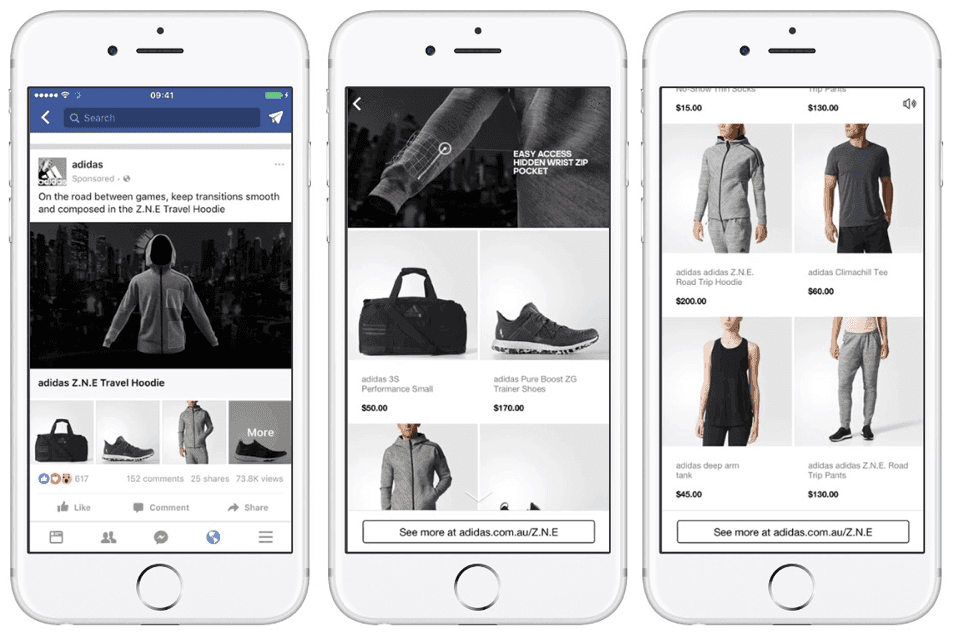
A Facebook Catalog is a centralized data hub inside Meta Commerce Manager where you store information about your items, whether that’s products, hotels, flights, or vehicles.
It contains key details like images, pricing, descriptions, and product IDs, which power dynamic ads, product tagging, and personalized marketing.
You’ll typically use a Facebook Catalog across several key surfaces, including:
- Facebook Ads (Dynamic Ads / Advantage+)
- Facebook Shop
- Instagram Shop
Why Facebook Catalog Matters for Shopify Stores
A well-integrated Meta Catalog is the foundation for Shopify stores that want to maximize performance on Facebook and Instagram.
Enable Dynamic Ads for Retargeting & Prospecting
With a synced catalog, you can run Advantage+ Catalog Ads that automatically show the exact products users have viewed, added to cart, or shown interest in. This works effectively for warming up past visitors while helping you acquire new customers through lookalike audiences.
Keep Product Data Accurate Across Channels
Once connected to your Shopify store, the catalog syncs images, prices, titles, variants, and inventory in real time. As a result, you eliminate manual errors and ensure a seamless experience between your website and ads.
Scale Personalized Ads with Automation
Meta’s AI uses your catalog data together with pixel events to generate thousands of personalized ad variations. Consequently, the system dynamically selects the most relevant products, images, and messaging for each viewer.
Scale Campaigns Without Manual Work
It helps you scale campaigns efficiently without constant manual setup. A reliable catalog allows you to launch and grow large Advantage+ Catalog campaigns quickly.
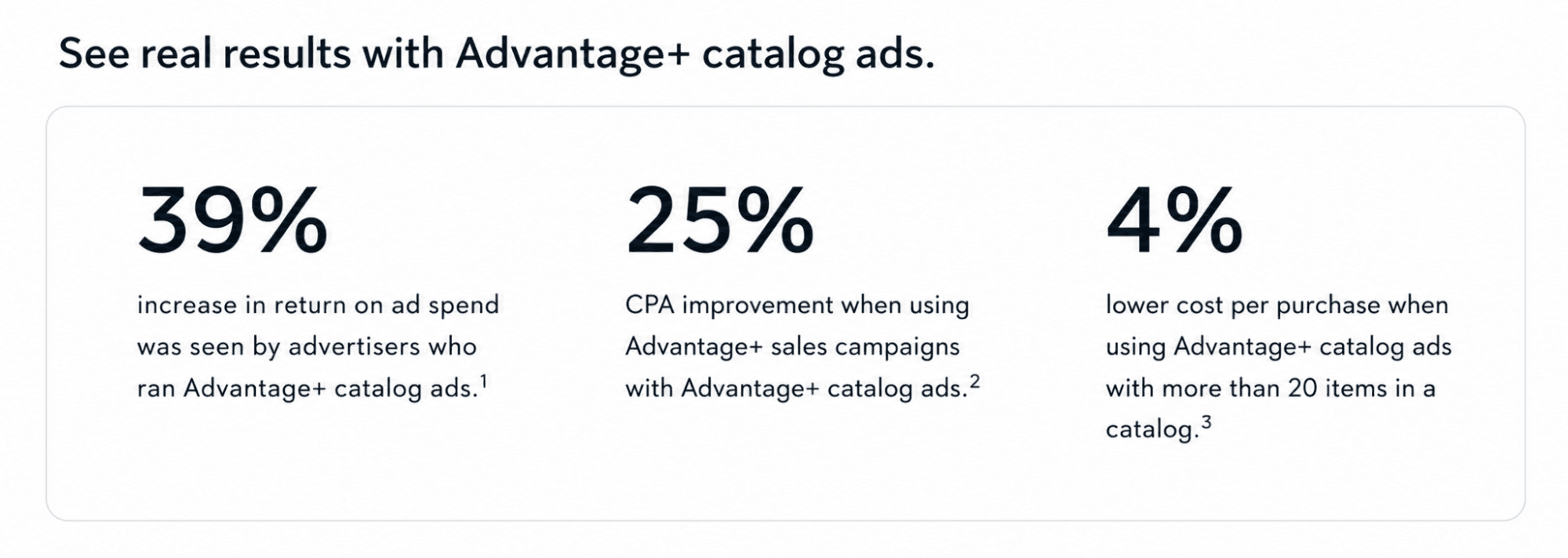
According to Meta’s Advantage+ Catalog Ads product page, advertisers using Advantage+ Catalog Ads experienced a 39% increase in return on ad spend (ROAS), a 25% improvement in CPA, and 4% lower cost per purchase when the catalog contains more than 20 items.
Facebook Catalog vs Product Feed: What’s the Difference?
Many Shopify merchants use the terms “product feed” and “Facebook catalog” interchangeably, but they are not the same thing. Both work together, yet each serves a different role inside the Meta ecosystem.
Product Feed
A product feed is the source that sends product data from Shopify to Meta. It contains information such as:
- Product titles
- Images
- Prices
- Availability
- Product IDs
- Variants and links
In feed management apps, the term “feed” is often used as a general name for all product data sources across multiple platforms. For Facebook specifically, feeds can deliver product data through:
- API connection
- Data file uploads or feed URLs (XML, CSV, TSV, etc.)
Facebook Catalog
The Facebook Catalog is where Meta stores and organizes that product data inside Commerce Manager. Products can be added to the catalog through different methods, including direct API connections, data file uploads or feed URLs, and manual product entry:
- Dynamic product ads
- Facebook Shop
- Instagram Shop
- Advantage+ Catalog Ads
In simple terms, the product feed delivers product data to Meta, while the catalog is the system that stores and uses that data for advertising and shopping experiences.
Component | Main Purpose | What It Contains | Where It’s Used |
| Product Feed | Sends product data from Shopify to Meta | Titles, images, prices, variants, inventory | Feed tools, API connections, data file uploads, scheduled feed URLs |
| Facebook Catalog | Stores and organizes products inside Meta | Product data added through API, data files, or manual entry | Commerce Manager, Dynamic Ads, Facebook & Instagram Shops |
Where Tracking Fits In
Alongside the feed and catalog setup, Meta Pixel or Conversions API helps Meta track user behavior on your Shopify store. Meta uses this event data to match shoppers with products in your catalog for dynamic ads and personalized recommendations.
All three components work together to support personalized ads and more accurate product recommendations across Facebook and Instagram.
Facebook Product Catalog Shopify: How It Works
Here’s how everything connects behind the scenes once you link your Shopify store to a Facebook catalog:
- Create the catalog: Set up a catalog in Commerce Manager based on your inventory type (eCommerce, travel, real estate).
- Upload product data: Connect your product feed (CSV, XML, or TSV) with details like IDs, titles, descriptions, images, and links.
- Sync with tracking data: Link your Meta Pixel or Conversions API to track user actions and match them with products.
- Organize product sets: Group items into sets (e.g. sale items, best sellers) for better targeting.
- Run dynamic ads: Meta automatically shows the most relevant products to each user based on their behavior.
What Do You Need Before Setting Up a Facebook Catalog for Shopify?
Before connecting Shopify products to a Facebook Catalog, merchants need a few basic requirements in place. Without proper setup, catalogs may fail to sync, show incomplete products, or run into approval issues later.
A Shopify Store With Active Products
Your Shopify store should already contain active products with titles, descriptions, prices, images, and availability information. Incomplete product data can create sync issues inside Meta Commerce Manager.
A Meta Business Manager Account
Meta Business Manager helps merchants manage assets such as Facebook Pages, ad accounts, Pixels, and catalogs in one place. Most Facebook Catalog setups require admin access to the connected business account.
Access to Meta Commerce Manager
Commerce Manager is where Meta stores and manages catalog data. Merchants use it to review synced products, diagnose catalog issues, and manage product visibility across Meta platforms.
A Connected Facebook Page and Instagram Account
Many Shopify merchants connect both Facebook and Instagram sales channels to expand product visibility and support shopping features across Meta apps.
Product Data That Meets Meta’s Commerce Policies
Meta may reject products that violate its commerce policies or contain incomplete information. Therefore, merchants should review product categories, descriptions, and images before syncing products into the catalog.
How to Connect Shopify Products to Facebook Catalog
You can connect your Shopify store to a Facebook Catalog in several ways. Each method offers a different level of control, flexibility, and automation.
Method 1: Upload a Product Feed Manually
This is the most basic method, where you upload your product data directly to Meta Commerce Manager.
- Export your product data from Shopify (CSV, XML, or TSV)
- Transform the exported file to match Meta’s catalog schema and required attributes
- Go to Commerce Manager and create a catalog
- Upload the file manually or schedule updates
This method gives you full control over the data. However, it requires manual updates and can quickly become time-consuming as your product catalog grows.
Method 2: Use a Product Feed Tool for More Control (Recommended)
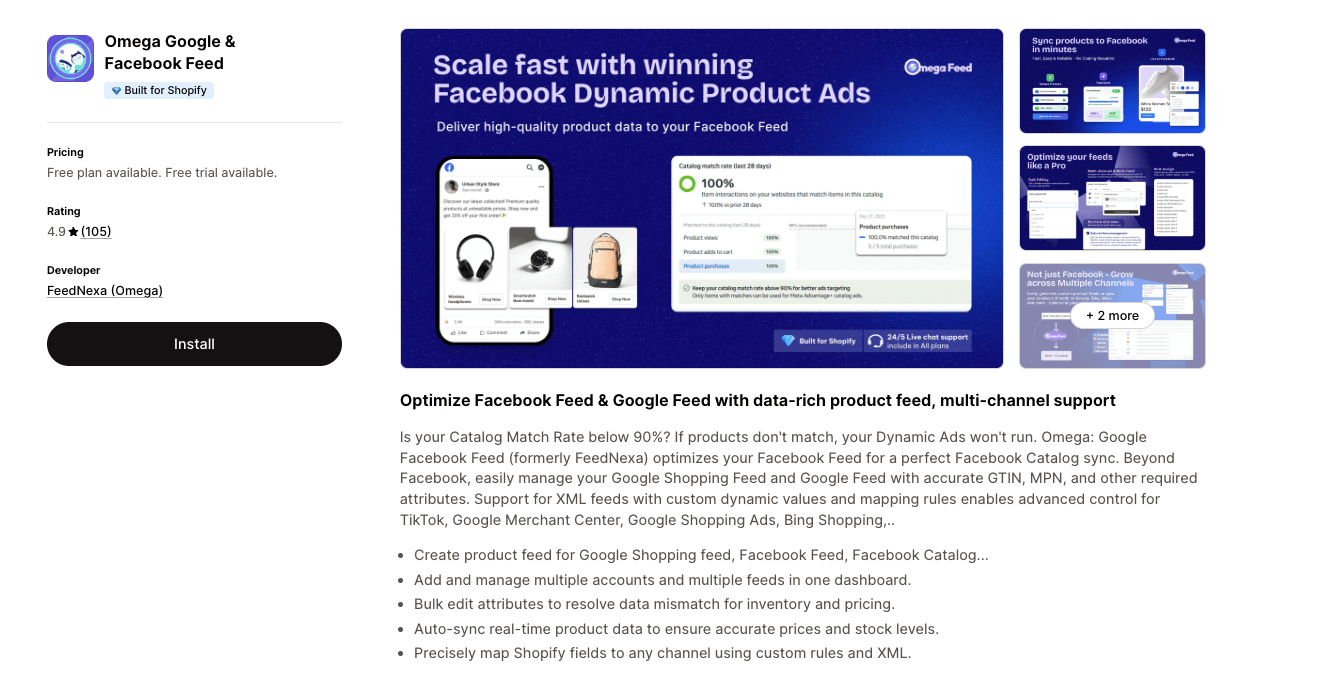
Instead of constantly updating files or checking for sync problems, you can automate the entire process and keep your catalog consistent without extra effort. Tools like Omega Google & Facebook Feed are designed to handle this at scale, especially for stores that frequently update products or run ads.
Once synced, you can use the same Facebook catalog across both Facebook Ads and Facebook Shop, so your product data stays consistent across all channels.
- Sync Shopify products directly to Facebook Commerce Manager
- Automatically sync price, inventory, and variants on schedule
- Fix data mismatches before they affect your catalog
- Customize product attributes with flexible mapping rules
- Manage multiple feeds and channels in one place
How to Sync Products from Shopify to Facebook
Once you connect your Shopify store to a Facebook Catalog, make sure your products sync correctly and stay updated so your catalog remains accurate.
- Step 1: Prepare your product data in Shopify by ensuring titles, images, prices, and variants are clear and accurate.
- Step 2: Set up your Facebook Catalog in Commerce Manager by creating a new catalog or selecting an existing one under the “eCommerce” category.
- Step 3: Sync your products by connecting Shopify through the native integration or a feed tool and enabling automatic updates.
- Step 4: Verify product matching by making sure the product IDs in your catalog match the content_ids sent through your Pixel or Conversions API (CAPI). Mismatched IDs are a common reason Advantage+ Catalog Ads fail to deliver dynamic creatives properly. Also review any missing or rejected items in Commerce Manager.
- Step 5: Keep your data updated by managing products in Shopify and monitoring sync status regularly.
Common Issues When Syncing Shopify Products to Facebook
Even when everything looks set up correctly, sync issues can still pop up. Here are some of the most common ones and how you can handle them:
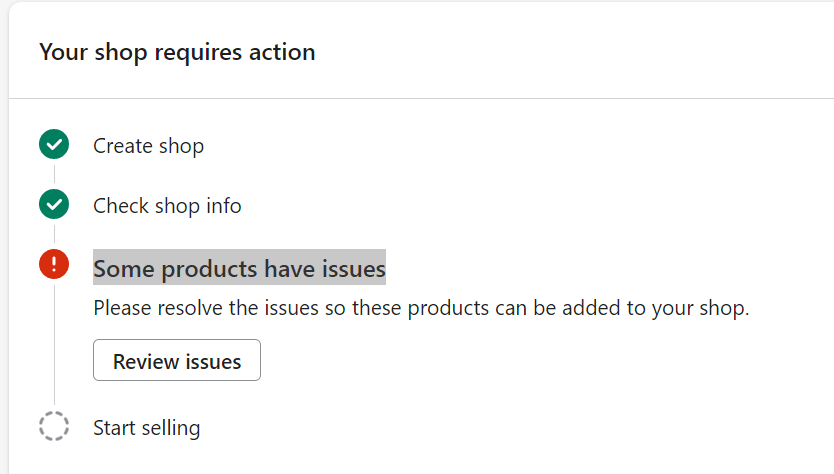
- Product rejections: Products may get rejected due to policy violations, missing info, or mismatched pricing. How to fix: Check the “Issues” tab in Commerce Manager, update your product data in Shopify, then wait for re-review.
- Expired permissions or token errors: The connection between Shopify and Meta can expire, stopping the sync. How to fix: Log out of Facebook inside the Shopify app and reconnect your account.
- Incorrect price or inventory: Changes in Shopify don’t reflect on Facebook, causing inconsistencies. How to fix: Manage all product data only in Shopify and avoid editing directly in Facebook.
- Missing variant data: Sizes or colors may not sync properly or appear incorrectly grouped. How to fix: Review product settings and ensure variants are structured correctly in Shopify.
- Disconnected or broken sync: Products don’t show up at all, or the integration throws errors. How to fix: Remove the Facebook & Instagram app from Shopify and reinstall it to reconnect everything properly.
Best Way to Manage Facebook Catalog for Shopify
If you want to manage your Facebook (Meta) Catalog for Shopify effectively, focus on a few key practices. These steps help you keep product data accurate, reduce errors, and improve overall ad performance:
- Keep Data Synced: In Meta Commerce Manager, enable automatic updates for inventory, pricing, and product availability to ensure your catalog always stays current.
- Use Proper Product Identifiers: Make sure every product and variant has accurate SKUs and Variant IDs. This ensures correct mapping and prevents duplicates or sync issues between Shopify and Meta.
- Leverage Meta Business Manager: Use Meta Business Manager as your central hub to organize catalogs, manage assets, control permissions, and oversee multiple ad accounts.
- Optimize Product Feeds: For advanced needs, use third-party tools to create custom product segments, optimize images, or handle complex data that the native integration may not fully support.
- Segment with Sets: Create Product Sets in Commerce Manager to group products by audience, promotion, or category. This is much more effective than using your entire catalog for every ad campaign.
FAQs about Facebook Catalog
Why is my Facebook catalog not showing all Shopify products?
This usually happens because some products are missing required fields, have policy issues, or are not published to the Facebook sales channel. Sync delays and catalog errors inside Meta Commerce Manager can also prevent products from appearing.
How does catalog quality affect Facebook ad performance?
Catalog quality affects how accurately Meta can match products to shoppers. Incomplete titles, poor images, or outdated pricing can reduce dynamic ad relevance and lead to lower conversions.
Why do my products show incorrect price or availability on Facebook?
This often happens because the sync has not updated yet or because product data was edited separately inside Meta. Most merchants avoid this by managing product information directly in Shopify and syncing changes automatically.
Do I need both product sync and tracking for dynamic ads to work properly?
Yes. Product sync gives Meta access to your product information, while tracking tools like Meta Pixel or CAPI help Meta understand customer behavior. Both are needed for accurate dynamic product recommendations and retargeting ads.
Final Thoughts
Don’t treat your Facebook catalog as just a setup step. It directly shapes how your products show up in ads and how well your campaigns convert.
Get the data right, and everything else becomes easier to scale. Keep it messy, and even good ads won’t perform as expected. That’s why many Shopify stores rely on tools like Omega Google & Facebook Feed to keep everything synced, clean, and running without constant fixes in the background.